
Want to make your phone say no location found? This guide shows you exactly how to turn off, fake, or hide your phone location easily. You will learn step-by-step methods for both iPhone and Android devices. Protect your privacy and control who sees where you are.
There are many reasons you might want your phone to say no location found. Maybe you are testing an app. Maybe you want more privacy. Or perhaps you just do not want anyone tracking where you are right now. Whatever your reason, it is totally possible to stop your phone from sharing its real GPS position.
In this guide, we will walk you through every method you can use. You will learn how to turn off location services, use fake location tools, and block apps from seeing where you are. These tips work on both iPhone and Android phones. Let us get started.
Why Would You Want No Location Found?
Before we dive into the how, let us talk about the why. Many people worry about their digital privacy every single day. Your phone constantly sends out signals that tell the world exactly where you are. This is called GPS tracking, and it happens in the background without you always knowing.
Location data gets used by apps, advertisers, and even your phone carrier. Some apps need your location to work properly. A weather app, for example, uses your phone location to give you local forecasts. But other apps collect your data just to sell it to third parties.
When you make your phone say no location found, you take back control. You stop unwanted tracking. You protect your personal routines. And you keep strangers from knowing where you live, work, or hang out.
Quick Tips for Better Location Privacy
- Check your location settings once a month.
- Turn off location for apps that do not need it.
- Use airplane mode when you want instant privacy.
- Clear your location history regularly.
- Review app permissions after every phone update.
How to Make Location Say No Location Found on iPhone
If you use an iPhone, Apple gives you several ways to hide or disable your location. Each method is simple and takes just a few taps.
Method 1: Turn Off Location Services Completely
This is the fastest way to make your phone show no location found. When location services are off, your iPhone stops sharing its GPS data with everything.
Here is what to do:
- Open the Settings app on your iPhone.
- Tap Privacy & Security.
- Select Location Services at the top.
- Toggle the switch to turn Location Services off.
Once you do this, your phone will not share its location with any app or service. Maps will show no location found. Find My will not be able to track you. And your location history will stop recording.
Method 2: Turn Off Location for Specific Apps
You do not have to turn off everything. You can pick and choose which apps get your location. This gives you more control over your privacy.
Go to Settings > Privacy & Security > Location Services. You will see a list of every app that requests location access. Tap on any app and choose Never. Or select While Using the App if you only want it to know your location when the app is open.
Method 3: Use Fake Location with Xcode (Advanced)
For users who want to trick their phone into showing a false location, Xcode offers a simulation tool. This is mainly for developers, but anyone can use it. You connect your iPhone to a Mac, open Xcode, and simulate a different GPS coordinate. The phone will then show that fake spot instead of your real one.
Method 4: Clear Location History and Significant Locations
Apple stores a record of places you visit often. This is called Significant Locations. To clear it:
- Go to Settings > Privacy & Security > Location Services.
- Scroll down and tap System Services.
- Tap Significant Locations.
- Clear your history and turn off the feature.
This removes past data that could be used to guess where you are.
How to Make Location Say No Location Found on Android
Android phones work a bit differently, but the goal is the same. You want to stop your phone from sharing its real GPS position.
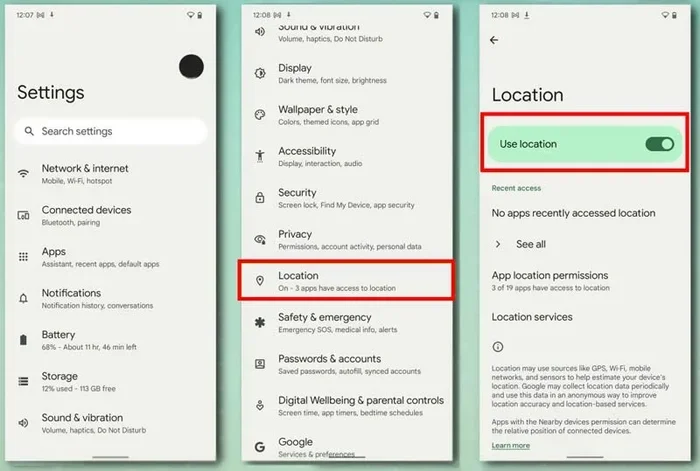
Method 1: Disable Location Access
- Open the Settings app on your Android phone.
- Tap Location or Security & Location (the name varies by brand).
- Toggle off the Use Location switch.
When you do this, your phone stops sending GPS signals. Google Maps and other apps will show no location found. Your real position stays hidden.
Method 2: Turn Off Google Location Accuracy
Android has a feature called Google Location Accuracy. It uses Wi-Fi and mobile networks to guess your location faster. Turning it off makes your position much harder to pin down.
Go to Settings > Location > Google Location Accuracy. Toggle Improve Location Accuracy off. Your phone will rely only on GPS, and even that can be blocked entirely if you turn off location access.
Method 3: Use a Fake Location App
There are many GPS spoofing apps on the Google Play Store. Apps like Fake GPS Location or GPS Joystick let you pick a fake spot on the map. Your phone will then report that spot as your current location.
To use one:
- Download a fake location app from the Play Store.
- Go to Settings > Developer Options.
- Enable Mock Location Apps.
- Select the fake location app you installed.
- Open the app and pick the location you want to fake.
Now when any app checks your location, it will see the fake spot you chose.
Method 4: Revoke Location Permissions for Individual Apps
Just like on iPhone, you can control which Android apps get your location. Go to Settings > Apps > Select an App > Permissions > Location. Change the permission to Don’t Allow. This stops that app from tracking you.
What Happens When You Show No Location Found?
When your phone says no location found, several things change. First, maps cannot show your position. Google Maps, Apple Maps, and Waze will all display an error or a blank spot. Second, ride-sharing apps like Uber will not know where to pick you up. Third, location-sharing features in messaging apps like WhatsApp or Snapchat will stop working.
This might sound inconvenient, but that is exactly the point. You are choosing privacy over convenience. And for many people, that trade-off is worth it.
Common Mistakes People Make When Hiding Their Location
- Forgetting to turn location back on: If you disable location services for too long, you might miss important notifications from navigation apps.
- Not checking background app permissions: Some apps still track you in the background even when you think you have blocked them.
- Using unreliable fake location apps: Free spoofing apps can contain malware. Always download from trusted sources like the official app store.
- Ignoring Wi-Fi and Bluetooth scanning: These features can still reveal your location even when GPS is off. Turn them off for full privacy.
Expert Insights on Phone Location Privacy
Privacy experts recommend a layered approach. Do not just turn off one setting. Instead, combine several methods for the best protection. Start by disabling location services for apps that do not need them. Then clear your location history regularly. Finally, use airplane mode or a fake location tool when you need temporary privacy.
According to digital privacy advocates, most people do not realize how much location data their phone shares every day. A single phone can send thousands of location signals in just one hour. By learning how to make your phone say no location found, you cut that number down to zero.
Key Takeaways
- Turning off location services is the most direct way to stop GPS tracking on your phone.
- Fake location apps let you trick tracking tools into showing a false or unavailable position.
- Revoking app permissions prevents individual apps from accessing your real location.
- Clearing location history removes stored data that could reveal your past movements.
- Airplane mode is the fastest shortcut to no location found in any situation.
- Both iPhone and Android offer built-in tools to hide or disable your phone location.
Conclusion
Making your phone say no location found is easier than most people think. Whether you use an iPhone or an Android device, you have many tools at your disposal. You can turn off location services completely, block specific apps, or even use fake GPS tools to mislead trackers.
The most important step is simply to start. Open your settings today and check which apps have access to your location. You might be surprised by how many are tracking you in the background. Taking control of your phone location is one of the best things you can do for your digital privacy.
Remember, your location data belongs to you. Do not let apps and services take it without your knowledge. Use the tips in this guide to stay private, stay safe, and stay in control.
Final Thought on Location Privacy
Privacy is not about hiding something bad. It is about choosing who gets to know your business. When you learn how to make your phone show no location found, you are making a smart decision for yourself and your family. Keep these methods handy and revisit your settings often. Technology changes fast, and so should your privacy habits.
Key Takeaways
- Turn off location services: The simplest way to make your phone show no location found is to disable GPS and location services entirely.
- Use fake location apps: Spoofing apps can trick your phone into displaying a false or unavailable location on maps and tracking tools.
- Revoke location permissions: Stopping apps from accessing your location prevents them from tracking you and showing your real position.
- Clear location history: Removing past location data helps keep your movements private and reduces tracking accuracy.
- Airplane mode works fast: Toggling airplane mode instantly cuts off all location signals and shows no location found.
- Both iPhone and Android work: The methods apply to iOS and Android devices with slight differences in settings paths.
Frequently Asked Questions
Can I make my phone say no location found without turning off GPS completely?
Yes, you can. Using a fake location app or spoofing tool lets you display a false position instead of your real one. This way, GPS stays on but shows a different spot or no real location at all.
Will turning off location services drain my battery?
Actually, the opposite is true. When you turn off location services, your phone uses less battery because it stops constantly searching for GPS signals and updating location data in the background.
Do fake location apps work on all phones?
Most fake location apps work on both Android and iPhone, but the setup process differs. Android devices usually allow mock location apps through Developer Options. iPhone users may need a computer with Xcode for advanced spoofing.
Is it legal to fake your phone location?
In most countries, faking your GPS location for personal use is legal. However, using fake locations for fraud, cheating, or illegal activities is not allowed. Always use location spoofing responsibly and ethically.
How do I stop Find My from tracking my phone?
To stop Find My from tracking you, go to Settings > Privacy & Security > Location Services on iPhone and turn off Location Services. On Android, disable Location access in your phone settings. This will make Find My show no location found.
Can someone still track me if I show no location found?
It is much harder for someone to track you when your phone shows no location found. However, advanced trackers or carrier-level tracking might still detect your cell tower connection. For full privacy, combine no location settings with airplane mode or a VPN.
=== CONCLUSION ===
Now you know exactly how to make your phone say no location found. You have the tools to protect your privacy on both iPhone and Android. Start with the simple steps like turning off location services, then explore fake location apps and permission controls for even stronger protection. Your privacy matters, and these small changes make a big difference.